Adult-ready image-to-video
Wan 2.7 Spicy is the adult-capable model for Image to Video. You provide a still and a motion prompt. Each model applies its own limits, so a request can be declined and outputs need a check before use.
Image-to-video for grown-up scenes
A2E AI starts where your picture already is. Drop in a photo you own, open the Image to Video tab, pick Wan 2.7 Spicy, and write one line about how it should move. The studio is for adults 18 and over. A model may reject a prompt or alter small details, so look over every result in History before you save or share it.
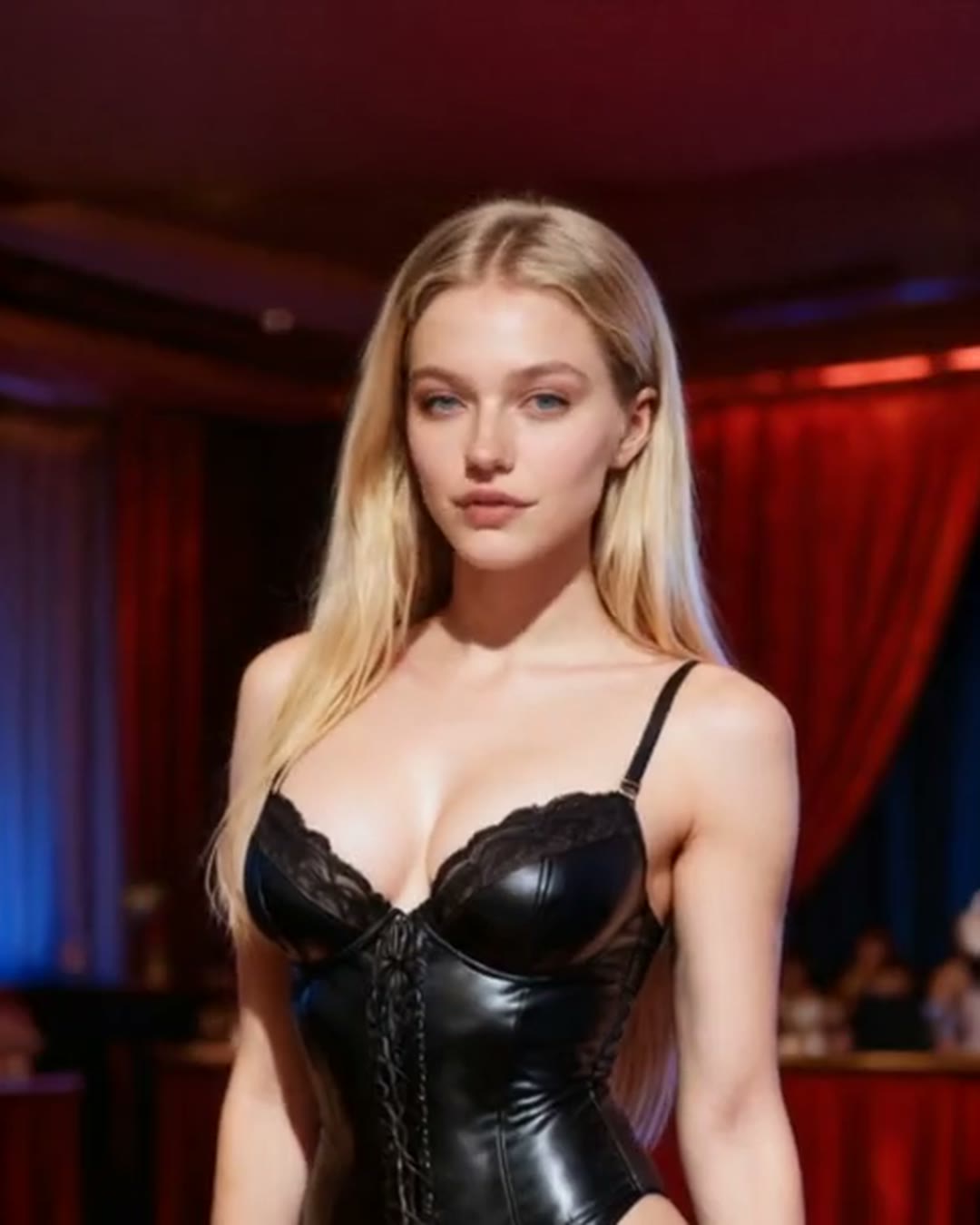
Club light, a black corset already in motion
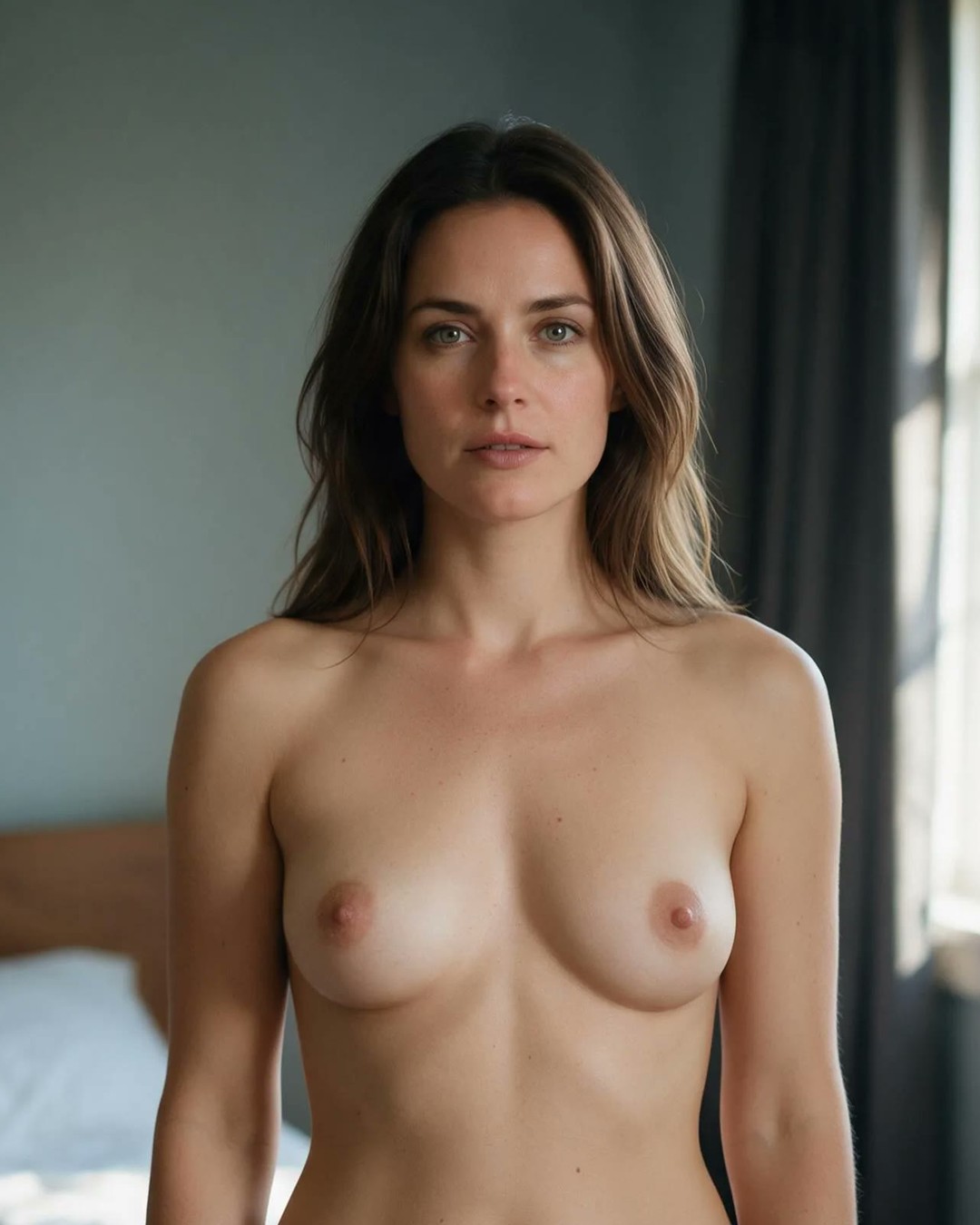
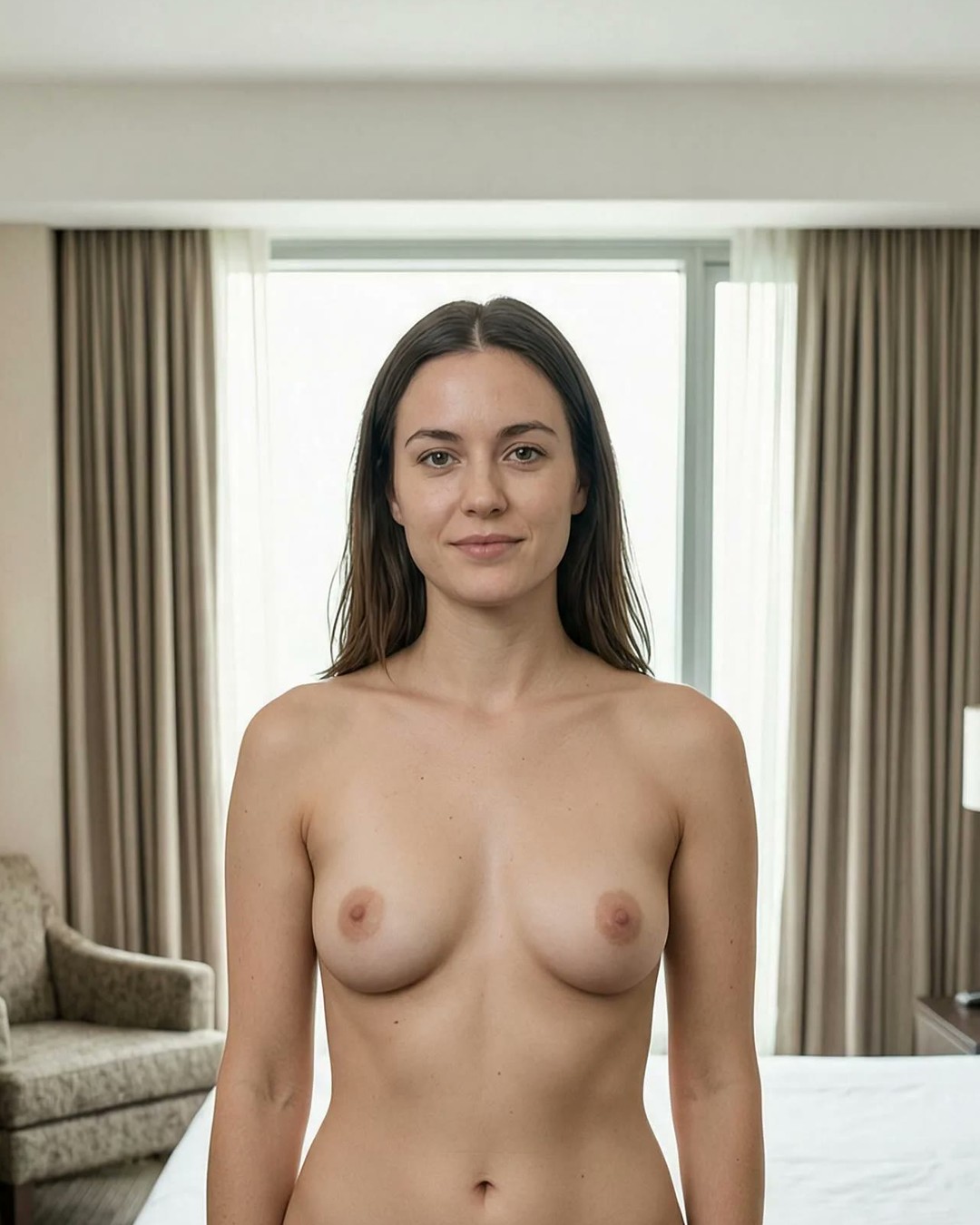
Window light, a nude still ready for image to video
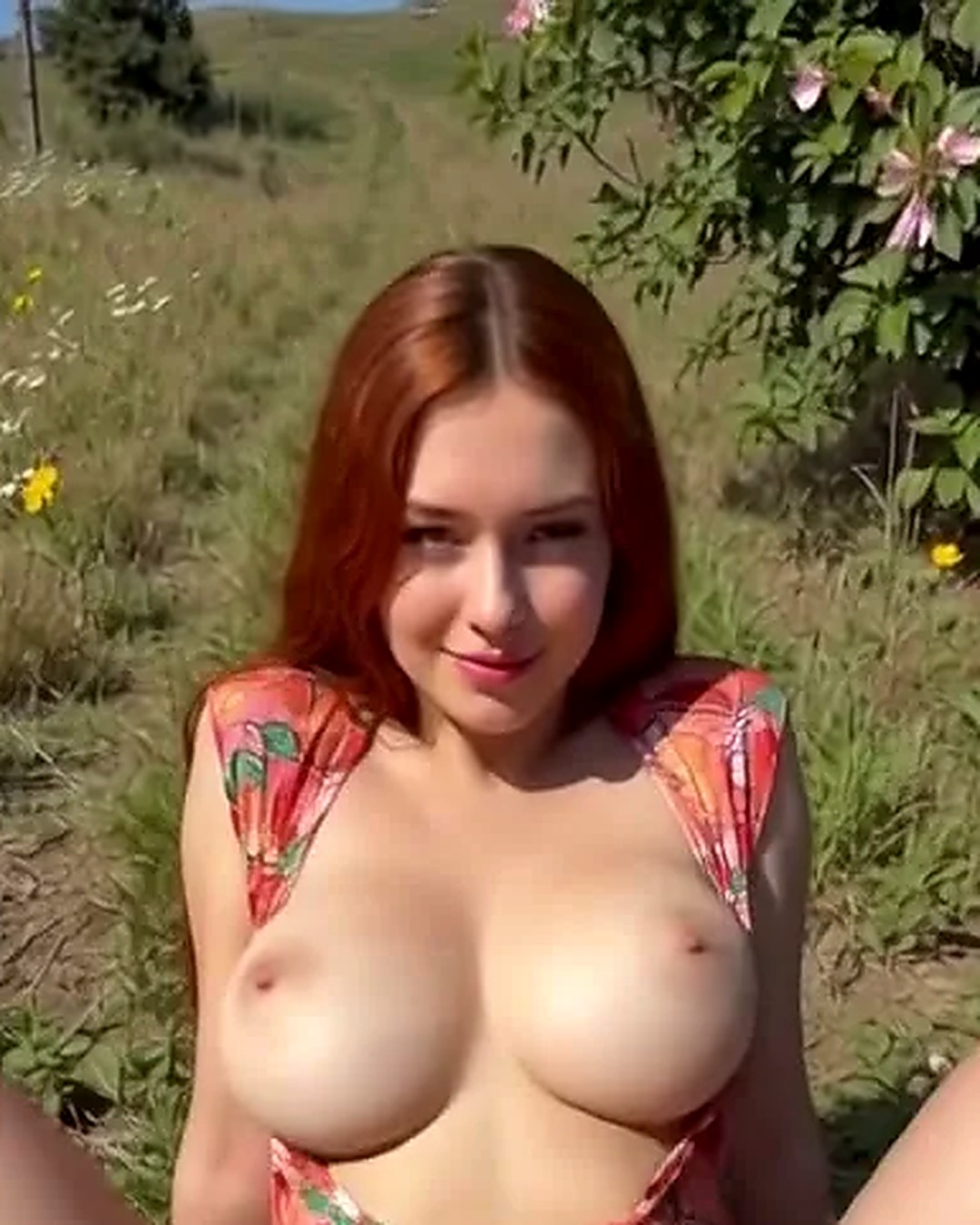
An outdoor still, dress open, ready to animate
A2E AI turns one image or one prompt into a finished clip inside the browser. You see the settings and a credit estimate before every submission, and results land in your account History.
Wan 2.7 Spicy is the adult-capable model for Image to Video. You provide a still and a motion prompt. Each model applies its own limits, so a request can be declined and outputs need a check before use.
Your first frame shows the model the face, clothing, and setting to aim for. Details can still shift as frames are generated. Compare the preview with your original and tweak the prompt when something drifts.
The workbench opens on Image to Video, with Text to Image, Image to Image, Text to Video, Video Edit, and Video Extend beside it. Choose the tab that fits the material in your hands.
A photo or generated image as the first frame means you do not describe the whole scene again. Add an end frame if you want to nudge the finish. File rules are in the FAQ.
There is nothing to install and no second account to open. Each route below ends with a file in History that you can open, review, and download.
Open Image to Video, upload your still, and select Wan 2.7 Spicy for adult scenes. Describe the motion you want. The photo guides the scene and you check the finished clip for changes.
Open Text to Image and write the scene. Seedream 5 Pro creates the still. Polish it, then send it on to Image to Video. Each generation is separate and carries its own credit estimate.
Video Edit modifies a video you already have, and Video Extend continues it. Upload the clip and read the options for the selected model before you submit.
Image to Image lets you try changes to a still before animating. Pick the version you like and use it as the first frame, so appearance and movement are settled one at a time.
Generation, model choice, and finished files share one workbench, and moving from an image idea to a video run does not need a second account.
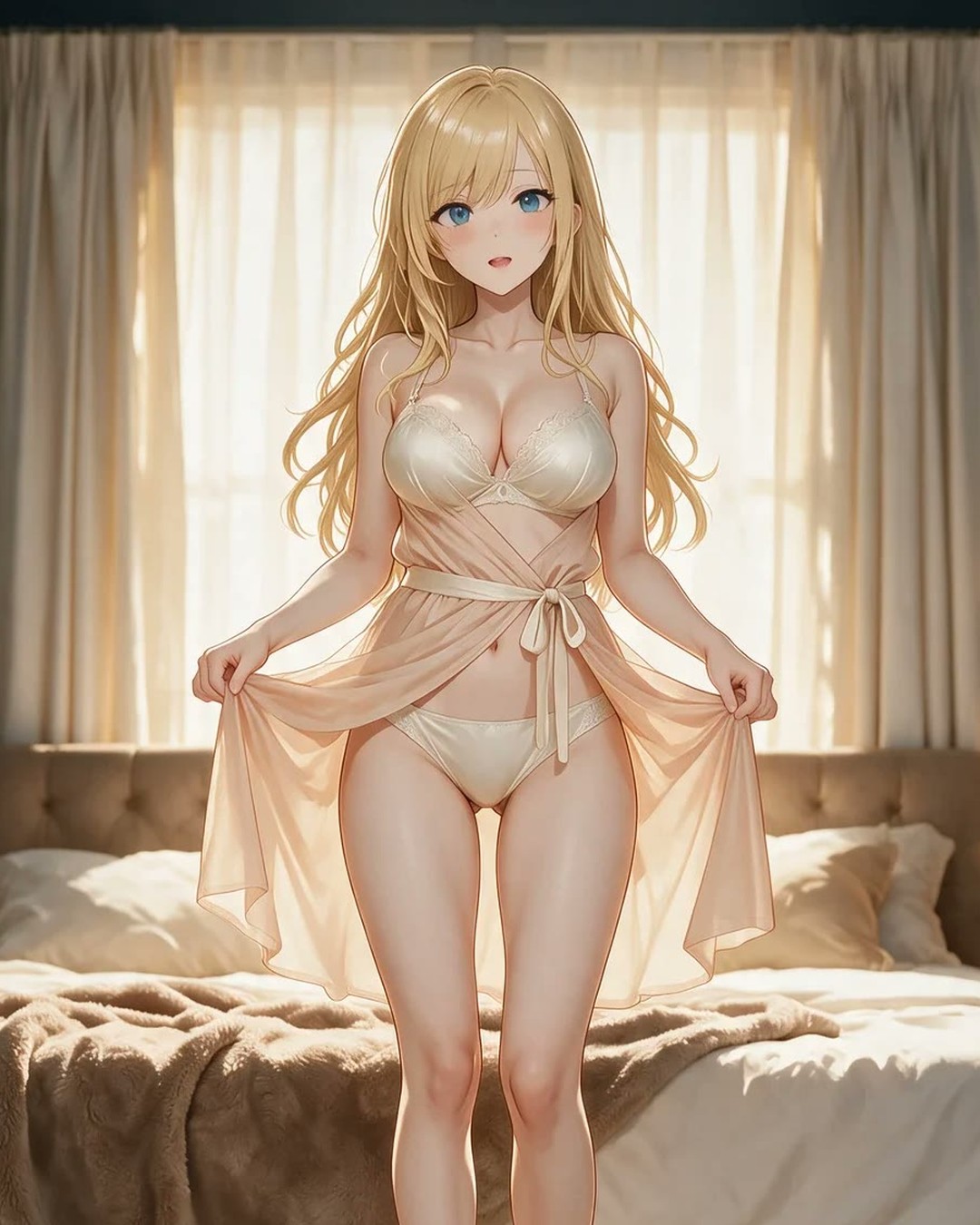
Wan 2.7 Spicy handles adult image-to-video and Seedream 5 Pro is the default for Text to Image. Even so, a model can refuse a prompt, so treat the first output as a draft.
Generate a still now and use it as a first frame later. Both formats spend the same balance, and completed files are all listed in History.

The credit estimate appears before you press Create. Afterwards, open the result from History to inspect and download it. Changing the prompt or requesting another version starts a new run.
Email verification is required, and account, device, and network checks apply before any registration credit is considered. Opening the site grants nothing, so read your balance before you begin.
Tabs are grouped by what you bring and what you want back. Choose one, read the model and settings shown, and switch whenever you like from the same bar.
Image to Video adds movement to a ready first frame. Put the action or camera move in the prompt, and add an end frame if you want to hint at the ending.
Text to Image builds a still from your description with Seedream 5 Pro. Look at it first and decide whether it works as a first frame.
Video Edit and Video Extend start from an existing clip and produce another version. Check the duration, resolution, and credit estimate for the model you chose.
Image to Image offers new takes on a photo or generated still. Change the background, outfit, or composition, then see whether the result is a good starting frame.
Available options depend on the workflow and the model, so one task may show different controls than the next. A short review before each submission prevents surprises.
Pick the available duration and resolution first. They shape the result and the price, so read them together with the displayed cost.
The model decides which inputs and prompts a workflow takes. Select Wan 2.7 Spicy for adult image-to-video. For text-first stills the workbench opens on Seedream 5 Pro.
The first frame ties Image to Video to your own scene. The end frame is optional guidance for the finish, not a guaranteed match, so inspect the clip for differences.
Completed images and videos are kept in History on the same account. Open one to review or download it. For another take, change the input and read the new estimate.
Images and video spend from one balance, with an estimate shown before you submit. Check your balance, your registration-credit status, and the price of the task before every run.
Registration credits are considered after email verification and account, device, and network checks. Verifying your email alone does not promise a grant, so trust the balance in your account.
Text to Image, Image to Video, and every other tab use the same balance. Making a still and then animating it are two runs, each with its own estimate.
The estimate reflects the model and options you selected. If you change either, or start another version, read it again. The pricing page lists credit options.
Adult creation is priced by the selected workflow and model, with no separate adult surcharge. Models, lengths, and resolutions differ in price, so read the estimate each time.
The steps vary a little with your starting point. These cover an uploaded photo, a generated still, an existing clip, and an optional end frame. Review each result before you use it.
Open Image to Video, upload a supported still, and select Wan 2.7 Spicy for adult scenes. Describe the movement, set the available duration and resolution, read the estimate, and press Create. Your clip appears in History.
Open Text to Image, write the scene, and generate with Seedream 5 Pro. Upload the chosen image in Image to Video, set motion and output options, and create the clip.
Select Video Edit or Video Extend and upload your video. Review the model options and the estimate, then press Create. Compare the new version in History with your original.
In Image to Video, upload a first frame and optionally an end frame, then describe the transition in the prompt. Both frames act as guidance, so watch for unexpected movement or changed details.
Quick answers on model limits, input files, credits, and results. If your question is about your account and is not covered, use the support link in the footer.
Adult and NSFW creation is part of the product, and Wan 2.7 Spicy is the adult-capable Image to Video model. The selected model can still refuse a prompt. The service is for people 18 and over, and you should upload only material you have the right to use.
JPG, PNG, and WEBP stills up to 10 MB and at least 300 by 300 pixels. The first frame is required and the end frame is optional. Check the file before you start the run.
One balance pays for image and video runs, and the estimate appears before you submit. Registration credits need email verification plus account, device, and network checks, and visiting the site adds none.
Yes. Text to Image, Image to Image, Image to Video, Text to Video, Video Edit, and Video Extend run on one account, and finished outputs appear in History for review and download.
Compare it with your input, then change the prompt, the reference image, or the model and try again. A new generation is a separate run with a new estimate, and earlier files remain in History.
That depends on your credits and the model settings. Check the estimate before each run, since a different length or resolution can use a different number of credits.
Your first clip is one upload away
Bring a photo to animate, or write a scene in Text to Image and carry the result forward. A2E AI puts the models, the settings, and the credit estimate on one screen, so you decide before you spend. Each finished image or video is stored in History for you to review and download.
 A2E AI